AI Audio Upscaler: How to Fix AI Songs Audio Quality with Restoration Models
AI music generators can get the hard creative part right. You may have a strong hook, a useful lyric, a believable arrangement, and a track that feels close to release-ready. Then you listen on headphones or studio monitors and hear the last 20% problem: hiss in the top end, metallic vocals, harsh hi-hats, weak bass, smeared reverb, or a dull frequency cutoff that makes the song feel smaller than commercial music.
This guide explains how to use an AI audio upscaler and audio restoration AI to improve AI-generated songs. The workflow is simple: import the track, restore the damaged full mix when the whole source is limited, split stems when the problem is isolated, repair the broken layer, master the cleaner version, and export WAV or FLAC.
If you want the fast path, start with the AI Audio Upscaler for AI Songs.

Listen: Before and After AI Song Restoration
The example below shows the kind of defect that often appears in AI-generated music: the song idea is usable, but the high-frequency behavior is unstable. The original has a visible cutoff and an uneven top end. In the restored version, the spectrum extends more naturally and the highs are easier to master.
Use this as a reference for what restoration is supposed to do. It should not just make the track louder. It should make the source more complete before you apply EQ, compression, limiting, or Match EQ mastering.
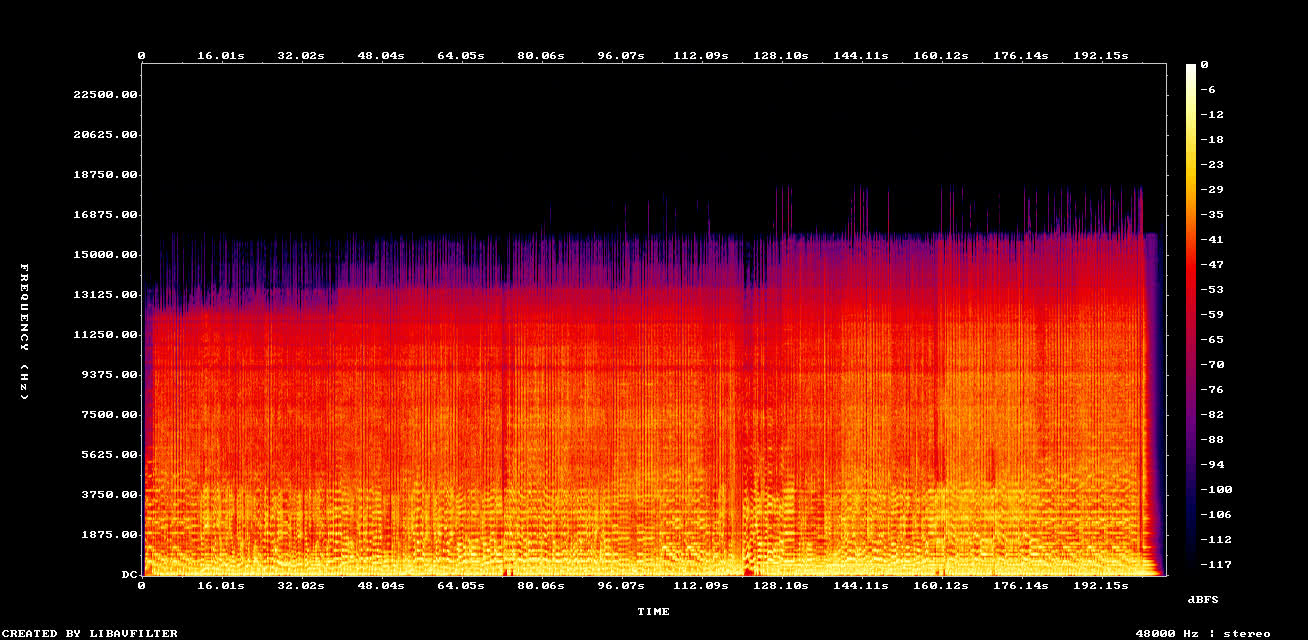
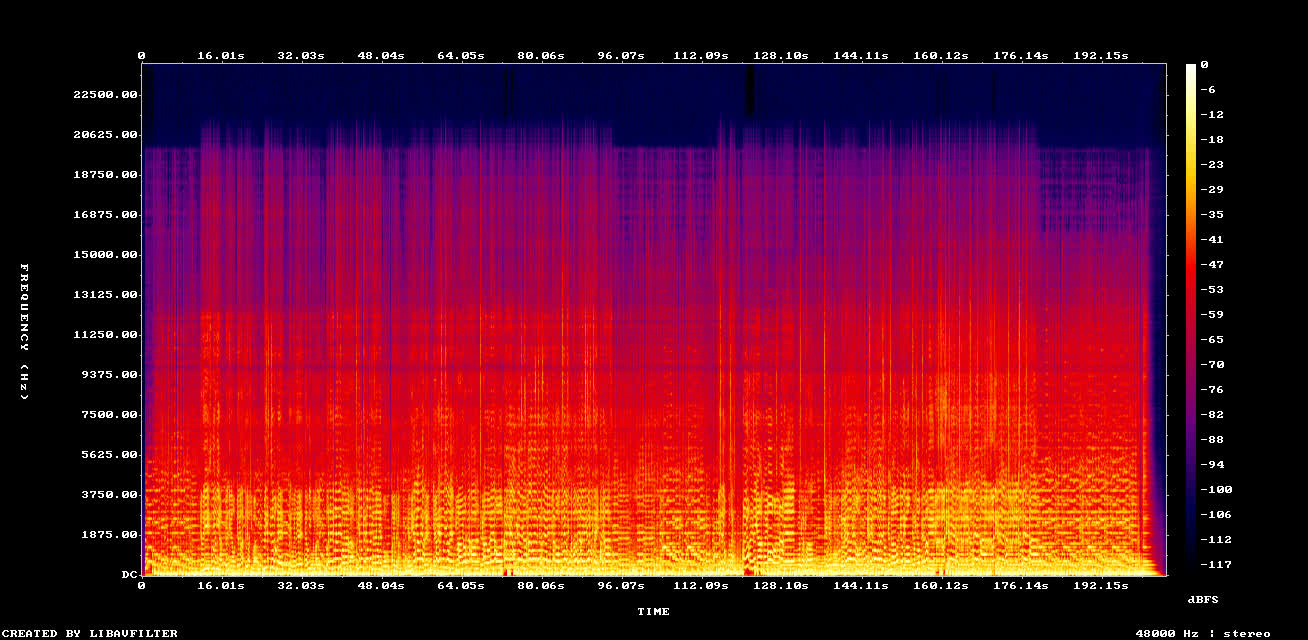
Example: Less hihats and more low ends pipeline on a full AI song
What Does an AI Audio Upscaler Actually Do?
An AI audio upscaler is not just a louder button. It is an audio restoration AI workflow that analyzes the damaged source and predicts missing musical information. For AI-generated songs, the most important repairs are usually bandwidth extension, artifact reduction, and preparing a cleaner file before mastering.

Different restoration models repair different kinds of damage:
- Music restoration models such as MP3 Music Restoration, UniverSR, and AudioSR rebuild missing high-frequency content and reduce compression artifacts.
- Separator-style cleanup effects such as Remove Noise, Remove Long Reverb, Denoise and Debleed, Remove Clipping, and Keep Only Center Mono remove a specific defect without trying to remake the song.
- Voice models such as RE-USE Speech Enhancer and Singing Upscaler are for isolated vocal material, not full mixes.
- Neural remix models such as ACEStep 1.5 XL and Stable Audio 3 are generative. Use them when the stem needs reconstruction or a new take, then blend the result with the original if needed.
Super-resolution models usually work by conditioning on the usable low and mid band, then generating plausible content above a selected cutoff. A lower cutoff changes more of the sound. A higher cutoff preserves more of the original and only fills the upper band. That is why cutoff choice matters: drums with harsh cymbals, vocals with missing air, and a full mix with a 12 kHz cap should not all be treated the same way.
| Problem in the AI song | What the restoration model does | Good Neural Analog starting point |
|---|---|---|
| Missing high frequencies | Rebuilds harmonic detail above the cutoff | MP3 Music Restoration examples, UniverSR examples, AudioSR examples |
| Metallic AI vocals | Splits vocals and uses voice restoration or dereverb instead of brightening the full mix | RE-USE model examples, 2-stem examples |
| Excessive reverb | Removes long tails after isolating the vocal or instrument that is smeared | Remove Long Reverb examples, Remove Reverb |
| Hiss, crackle, or clipping | Uses denoise or declip only when that defect is actually present | Remove Noise examples, Remove Clipping examples |
| Weak bass or smeared low end | Splits stems first, then fixes bass and drums individually with center extraction, EQ, or neural remix instead of high-frequency upscaling | 6-stem examples, ACEStep examples |
| Not loud enough | Restores damaged source audio first, then uses mastering for loudness and tonal balance | AI mastering examples, Auto Mastering |
| Dull but usable mix | Restores the source, then masters the cleaner version | AI mastering, Match EQ |
The key difference is that restoration happens before final polish. If the source is missing information, mastering cannot recover it. Mastering can make a restored AI song louder, wider, and more balanced, but it should not be asked to invent the missing spectrum.
Why AI Songs Sound Muffled, Metallic, or Hissy
Most AI song quality problems are source problems. They are not only mixing problems.
AI music generators often output audio that is already compressed, bandwidth-limited, or artifacted. Some tracks have a cutoff around 12 kHz to 16 kHz. Others have high-end shimmer, brittle cymbals, and vocal artifacts that get worse when you brighten the mix. The composition may be good, but the audio export does not have the same clean spectrum, transient detail, and stem separation you expect from a professionally recorded song.
Common symptoms include:
- Hiss, crackle, or static around vocals and cymbals
- Metallic, hollow, or robotic vocals
- Harsh hi-hats that sit above the rest of the song
- Weak bass that disappears on small speakers
- Reverb tails that smear into the vocal
- A dull top end with missing air above the cutoff
- Choruses that collapse into one noisy texture
- Tracks that sound worse after normal mastering
The fix is to repair the source first. Then master.
Converting an MP3 to WAV does not improve audio quality. It creates a larger file with the same missing data. To actually improve an AI song, you need restoration models that rebuild missing content and reduce artifacts.
AI Audio Upscaler vs AI Audio Enhancer vs AI Mastering
Search results often mix these terms together, but they solve different problems.
AI audio upscaler: rebuilds missing frequency content and repairs low-quality source audio. Use this first when an AI-generated track sounds muffled, metallic, compressed, or capped in the high end.
AI audio enhancer: usually means a broader tool that may remove noise, level volume, or improve speech clarity. It can help, but many enhancer tools are optimized for voice recordings, podcasts, or video dialogue rather than full music mixes.
AI mastering: adjusts loudness, EQ, stereo width, compression, and final tonal balance. Use it after restoration. If the raw AI export has hiss or crackle, mastering first can make those artifacts louder.
AI denoise: removes noise or hiss, but it is not the same as audio super-resolution. If the top end is missing, denoise alone can make the song cleaner but smaller.
Why Traditional Audio Techniques Don't Work for Fixing AI Audio
There are several traditional fixes that help a little, but they do not solve the root problem in AI-generated audio.
MP3 to WAV conversion changes the file container. It does not restore the spectrum. The dark gap in the spectrogram stays dark.
EQ can brighten the song, but it brightens artifacts too. If the cymbals, vocal sibilance, or AI shimmer are already damaged, a high-shelf boost makes them more obvious.
Generic denoise tools can reduce hiss, but they may also remove vocal air, cymbal texture, and room tone. If the song is missing high-frequency detail, denoise alone can make the track feel even smaller.
Mastering-only workflows make the song louder and more balanced, but they also make crackle, hiss, and metallic tone louder. Mastering works best after restoration.
One-click remaster buttons can be convenient, but they usually do not give you stem-level control. If the vocal is metallic but the drums are fine, you need to isolate and process the vocal instead of applying one global preset to the full mix.
Step-by-Step AI Audio Upscaler Workflow
Step 1: Import the AI Song
Start by importing the song into Neural Analog. You can upload a file or paste a supported public source link. Common input formats include MP3, WAV, M4A, MP4, FLAC, AIFF, AAC, OGG, OPUS, WMA, and ALAC.
Before choosing a model, listen for where the damage lives. If the whole song is dull, compressed, or capped, start with full-track restoration. If the vocal is metallic, the hats are splashy, or the bass is smeared while the rest of the song is usable, split stems first and repair only that layer.
Step 2: Run Audio Restoration AI
Use MP3 Music Restoration first when the AI song sounds compressed, muffled, or like it came from a low-quality online source. This model is built for music restoration and is a strong default for full AI song exports with MP3-style damage.
For stronger high-frequency reconstruction, try UniverSR or AudioSR. These super-resolution models are useful when the track has a clear cutoff or a dull top end. Compare filtered examples for MP3 Music Restoration, UniverSR, and AudioSR.
Step 3: Split Stems for Targeted Repair
If the entire song is dull, restore the full mix. If one layer is broken, split stems first.
Use AI stem splitting or 6-stem splitting examples to isolate vocals, drums, bass, guitar, piano, and other instruments. Then process only the damaged stem.
- Metallic vocals: isolate vocals, then compare RE-USE Speech Enhancer, Singing Upscaler, Remove Long Reverb, and Remove Noise depending on the defect
- Harsh drums: isolate drums, then compare UniverSR or AudioSR for cymbal bandwidth, Neural Reconstruction for strange electronic hats, and Remove Clipping for cracked transients
- Weak bass: isolate bass, then use Keep Only Center Mono for mono/phase problems or ACEStep 1.5 XL when the part needs generative low-end reconstruction
- Busy choruses: split into 6 stems before doing heavy processing, so the damaged layer is not forcing a global preset on the whole mix
This is the difference between making the whole mix brighter and actually repairing the layer that is causing the problem.
Step 4: Clean Reverb, Hiss, and Crackle
Some AI vocals carry too much reverb or delay. Some full mixes carry hiss and crackle in the upper range. Use targeted restoration:
- Remove Reverb when vocals or instruments have messy tails
- Remove Noise examples when static or hiss is the main issue
- UniverSR examples when the problem sounds like high-end export hiss, crackle, metallic highs, or AI shimmer
Do not over-denoise before checking the restored version. Over-denoising can remove the exact high-frequency detail you are trying to recover.
Step 5: Master the Cleaner Version
Once the source and stems are cleaner, master the track. Use automatic mastering or Match EQ to shape the balance toward a reference.
This order matters. Restoration gives mastering better input. Mastering gives the restored song a more finished loudness, tonal balance, and translation across headphones, phones, and speakers.
If you skip restoration and master the raw AI export, the limiter may make hiss louder, the EQ may exaggerate metallic highs, and the song may feel bright but still low quality.
Step 6: Export WAV or FLAC from the Upscaled Audio
When the song is ready, export WAV or FLAC. This does not mean the original AI MP3 became truly lossless in a strict archival sense. It means you now have a higher-quality processed file that contains restored frequency content, cleaner stems, and mastering decisions that are worth preserving.
Use the export for DAW editing, video sync, distribution prep, or archiving the improved version.
Stem-by-Stem Restoration Guide
The restoration selector is organized by what the model is allowed to do: Restore Music for transparent music restoration, Audio Effects for targeted cleanup, Voice for isolated speech or singing, and AI Remix for generative reconstruction. Start in the least creative group that can solve the problem. Move to AI Remix only when the stem needs to be remade, not merely cleaned.
How to Restore a Full AI Track
Restore the full AI track when the whole song feels compressed, bandwidth-limited, or smaller than the arrangement should feel. In the Restore Music group, start with MP3 Music Restoration for MP3-style damage, online-source artifacts, missing highs above the upper band, and general compression damage. It is the safest first pass because it is trained on clean music and degraded MP3 pairs, so it repairs the source without trying to rewrite the song.
If the spectrogram has a clear cutoff or the song still sounds capped after MP3 Music Restoration, compare UniverSR and AudioSR. UniverSR is usually the cleaner choice for coherent high-end reconstruction on music, voice, and sound effects. AudioSR is useful when you want more aggressive upper-band regeneration above a selected cutoff. Use a higher cutoff when the track is mostly good and only needs air; use a lower cutoff when the upper band is badly damaged and you accept more change.
Do not use voice-only models on the full mix. Do not use bass-oriented neural remix to fix a whole master unless you want a creative alternate take. If the full mix has literal clipping, use Remove Clipping before mastering. If the whole mix has broadband hiss, use Remove Noise carefully, then compare whether the song lost too much air.
How to Restore AI Vocals
Restore AI vocals after splitting the vocal stem. Full-mix restoration can help a dull master, but it cannot separate metallic vocal tone from cymbals, synths, and reverb. Once the vocal is isolated, use the Voice group when the problem is vocal-specific. RE-USE Speech Enhancer is the best fit when the vocal needs to become drier, clearer, less noisy, or less glitchy. Singing Upscaler is the better fit when the isolated singing stem mainly needs missing high frequencies and compression artifact repair; compare it against the RE-USE model examples before committing to a vocal pass.
If the vocal is buried in long tails, use Remove Long Reverb before or after vocal upscaling depending on the artifact. Dereverb is for long reverb, delay, and hall echo; it is not a high-frequency upscaler. If the vocal has steady hiss or background noise, use Remove Noise lightly and listen for lost breath and consonant detail. If the vocal sounds metallic because the whole upper band is missing, a music super-resolution model can be tested, but RE-USE or Singing Upscaler should usually be the first vocal-specific comparison.
How to Restore AI Drums
Restore AI drums after splitting the drum stem when cymbals, hats, snares, or transients are causing the problem. For splashy hi-hats or cymbals with a visible high-frequency cutoff, compare UniverSR and AudioSR. Start with a higher cutoff when the drums already have usable transients and only need smoother air. Lower the cutoff only when the cymbal band is badly damaged, because the model will change more of the drum texture.
For strange electronic hi-hats or out-of-distribution percussion textures, Neural Reconstruction can work better than a normal upscaler because it regenerates the full frequency profile rather than only filling the upper band. For clipped snares, distorted kicks, or harsh transient crackle, Remove Clipping is more pertinent than AudioSR or UniverSR. Remove Noise is only useful when the drum stem has actual hiss or background noise; it will not rebuild damaged cymbal detail by itself.
How to Restore AI Bass and Kick
Bass and kick problems are usually not high-frequency upscaling problems. If the bass is muddy, phasey, weak, or missing note definition, AudioSR, UniverSR, and FlashSR are usually the wrong first tools because they are designed around bandwidth extension and upper-band detail. Start by splitting stems, then fix the bass and drums individually so kick, bass, and drum transients are not processed as one smeared full mix.
Use Keep Only Center Mono when the bass or kick should be centered but has chorus, phaser, flanger, or stereo smear. This keeps the mono center and removes side information that makes the low end unstable. After splitting, treat the bass stem for mono, phase, or reconstruction problems, and treat the drum stem separately for kick punch, clipping, harsh hats, or transient damage. Use ACEStep 1.5 XL when the bass part needs generative reconstruction: missing notes, muddy low end, or a new low-end take that can be blended under the original. Stable Audio 3 is more appropriate when the instrumental texture needs a prompt-guided reinterpretation, not when you only need transparent bass cleanup.
How to Restore Guitars, Piano, Synths, and Other Instruments
Instrument stems need the same diagnosis as a full mix, but with less collateral damage. For a compressed guitar, piano, synth, string, or "other" stem, start with MP3 Music Restoration. If the instrument has a clear high-frequency cutoff, compare UniverSR or AudioSR. FlashSR can be useful for quick single-instrument upscaling or preparing 44.1 kHz stems for a 48 kHz workflow, but it is not a bass repair model.
Use Remove Long Reverb when the instrument is smeared by long tails. Use Remove Noise or Denoise and Debleed when the stem contains background noise or source bleed. Use Neural Remix with ACEStep or Stable Audio 3 only when the instrument needs musical reconstruction, inpainting, or an alternate performance. That is a creative repair path, so keep the source nearby and blend instead of replacing the stem blindly.
Restoration Selector Order
Use the selector in this order:
- Restore Music for full mixes and music stems that need missing highs or compression repair. Compare MP3 Music Restoration, UniverSR, and AudioSR.
- Stem splitting when only vocals, drums, bass, or another layer is broken. See 6-stem examples.
- Voice for isolated vocals. Compare RE-USE Speech Enhancer, Singing Upscaler, Remove Long Reverb, and Remove Noise based on the defect.
- Audio Effects for one specific artifact: Remove Noise for hiss, Remove Long Reverb for long tails, Remove Clipping for crackle from overload, Denoise and Debleed for source bleed, and Keep Only Center Mono for mono bass or kick.
- AI Remix when transparent restoration is not enough and the part needs to be reconstructed. Use ACEStep 1.5 XL for bass, missing notes, and stem inpainting; use Stable Audio 3 for broader prompt-guided instrumental reinterpretation.
- Automatic mastering or Match EQ only after the source is cleaner. See mastering examples.
AI Audio Upscaler FAQ
What is an AI audio upscaler?
An AI audio upscaler uses neural audio restoration models to infer missing frequency content, reduce compression artifacts, and improve low-quality audio before mastering or export. For AI songs, this usually means restoring missing highs, reducing metallic shimmer, and creating a cleaner WAV or FLAC version for production.
Is audio restoration AI different from AI mastering?
Yes. Audio restoration AI repairs the source audio by rebuilding missing detail and reducing artifacts. AI mastering changes loudness, EQ, dynamics, and stereo balance after the source is cleaner. If the song already has hiss, crackle, or a frequency cutoff, restoration should happen first.
Can I fix AI song quality with EQ only?
Sometimes EQ helps, but EQ cannot recreate missing audio data. If the song has a cutoff, metallic shimmer, or compression damage, restore first and use EQ after.
Should I restore before or after mastering?
Restore before mastering. Mastering is the final polish. If the source is damaged, mastering tends to amplify the artifacts.
Which model should I try first?
Try MP3 Music Restoration first for most AI song downloads. If the song still sounds capped in the top end, compare AudioSR or UniverSR. If the problem is in vocals, drums, or bass, split stems and process that layer.
Should I restore the full AI song or split stems first?
Restore the full AI song first when the whole mix is compressed, dull, or capped in the high end. Split stems first when one layer is causing the problem, such as metallic vocals, splashy drums, or muddy bass.
How to Prepare AI Songs Before Mastering
If your AI song already has hiss, crackle, metallic vocals, or missing high frequencies, do not start by making it louder. Restore the source, repair stems when needed, then master the cleaner version.