How to Improve Suno AI Audio Quality: Fix Muffled Songs
To improve Suno AI audio quality, restore the missing high frequencies with an AI upscaler, fix the balance on separated stems, then master the result. Most Suno songs sound muffled because they have almost nothing above 12 to 16 kHz, and no EQ can boost what is not there.
You know the feeling: the song and structure are exactly what you wanted, and you are 80% of the way there. But the track sounds dull, muddy, or thin in the low end, with loud hi-hats and a digital hiss. It does not hold up next to songs on Spotify or YouTube.
This guide shows how to close that last 20% with Neural Analog. You will find defects with spectrograms, lower harsh hi-hats, add bass presence, keep vocals clear, restore missing frequencies up to 20 kHz, mix with AI stem splitting, and shape the final tone with Match EQ.
Short Video Guide: Fix Suno Audio Quality
Watch the short guide to see the main fix on a Suno v6 song: import the track, restore the missing highs, remove the hiss, and compare before and after.

Quick Fixes by Symptom
Find your problem in the table, then jump to the matching step below.
| What you hear | Likely cause | Fix |
|---|---|---|
| Muffled, dull, no air on top | High frequencies cut off around 12 to 16 kHz | AI upscaler for AI songs (Step 2) |
| Hiss, crackle, metallic shimmer | Generation and compression artifacts | Fix Suno hiss with restoration (Step 2) |
| Splashy, harsh hi-hats | Too much energy in the drum highs | Less hihats and more low ends pipeline, or EQ on the drum stem (Step 3) |
| Weak or muddy bass | Bass and kick share the same range | EQ or Neural Remix on the bass stem (Step 3) |
| Robotic vocals, too much reverb | Effects baked into the vocal | Remove Reverb and Singing Upscaler (Step 3) |
| Quieter than other songs | The song is not mastered | Make Suno songs louder with mastering (Step 4) |
| Applause or cheering you did not ask for | Live-style generation | Remove crowd noise from Suno songs |
| Drums you did not want | Prompts cannot remove drums | Remove drums from a Suno song |
Listen: Suno Song Before and After Restoration
This full-song example has an unusual defect in the original Suno file: the high frequencies get progressively louder as the song goes on. The spectrogram shows it as a visible gradient. The track starts with a cutoff around 13 kHz and ends closer to 15 kHz.
In the restored version, the high frequencies stay stable throughout the song and extend up to 20 kHz. Neural Analog lowers only the hi-hat highs enough to keep the balance under control, while the voice and guitar stay clear through the whole track.
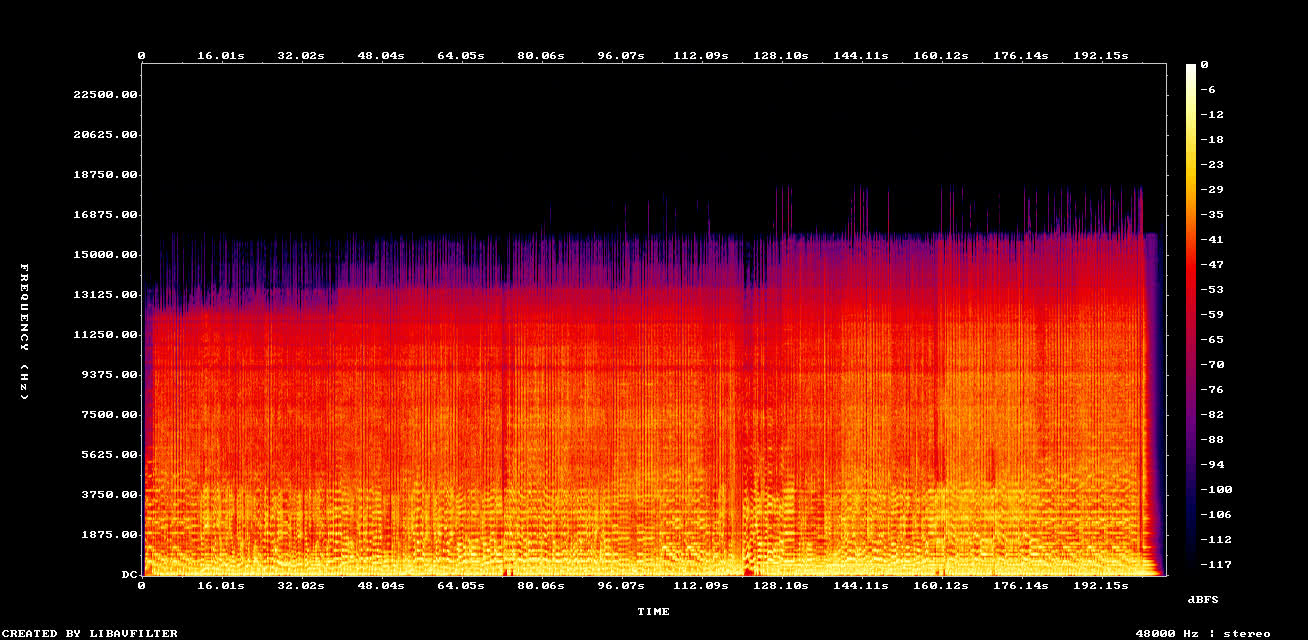
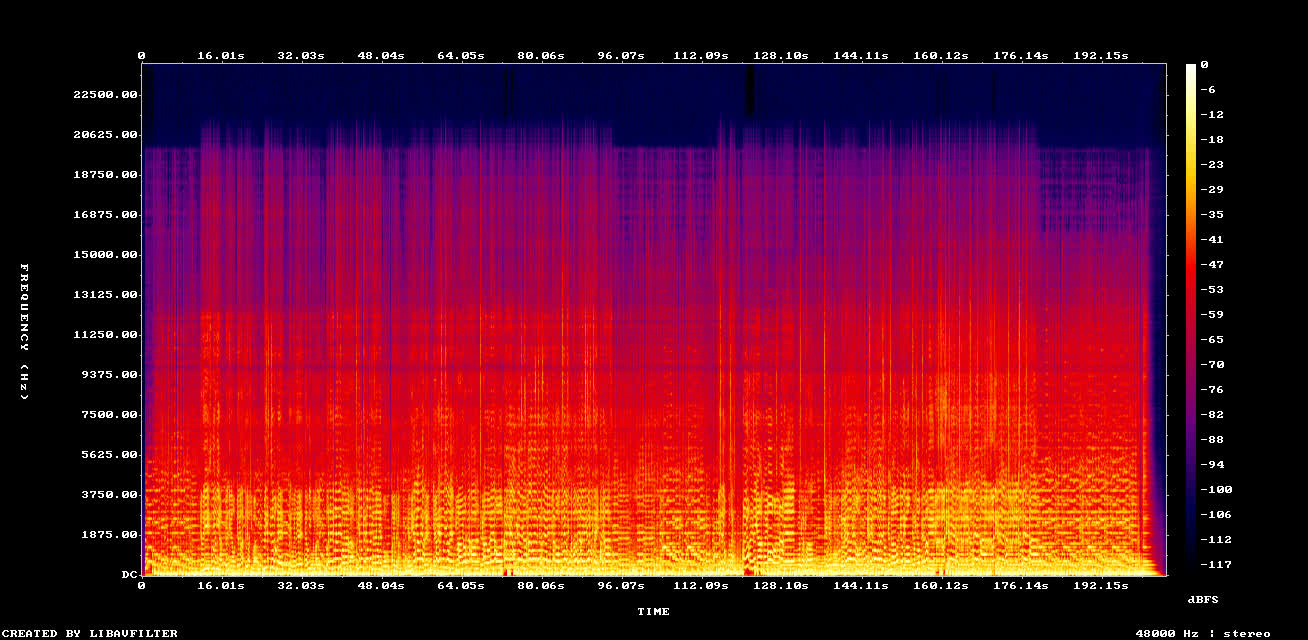
Example: Less hihats and more low ends pipeline on a full Suno song
Why Does Suno AI Music Sound Muffled? The 12 kHz Cutoff Explained
Why does AI-generated music often sound like a vintage cassette tape? Because the exported audio is often bandwidth-limited, compressed, or full of artifacts before you ever open it in a DAW.
Import a raw Suno generation into Neural Analog and look at its spectrogram (a picture of frequency content over time), and the problem is easy to see.
In a typical Suno track, the frequencies cut off completely around 12,000 to 13,000 Hz. Humans can hear up to about 20,000 Hz, and CD-quality audio extends to 22,050 Hz. With nothing above the cutoff, the track sounds retro, flat, and lo-fi. Part of the cause is lossy audio in training data and exports, as covered in why AI generators output 16 kHz MP3s with artifacts.
Newer models are not immune. After Suno launched v6 in September 2026, subscribers described the songs as muffled and dull, with a weak high end (Digital Music News). Whatever model you use, check the spectrogram before you decide how to fix the song.
Bandwidth is not the only problem. A raw Suno track can also have splashy hi-hats, weak bass, and vocals that lose clarity when you try to fix the balance with a normal EQ. A good Suno audio restoration chain handles all of these: rebuild the missing spectrum, lower the hi-hats, bring back the low end, and keep the vocal intelligible.
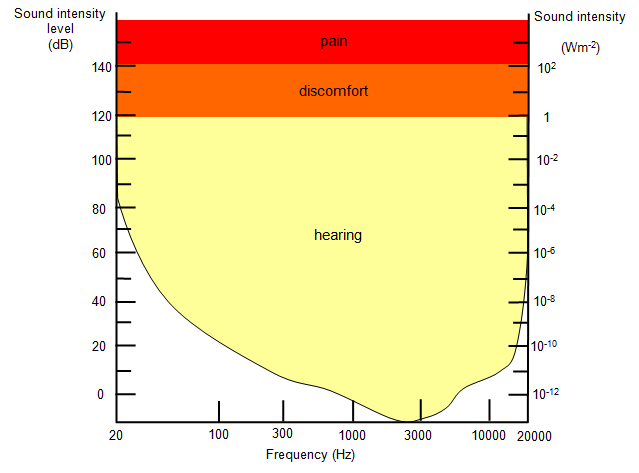
Note: You can't scale up a tiny, pixelated image in MS Paint and expect real details to appear. In the same way, converting a Suno MP3 to WAV in a DAW does not make it sound better. You have to reconstruct the missing audio data with AI.
How to Enhance and Master Suno AI Tracks Step by Step
You don't need to be an audio engineer to fix these issues. Here is the workflow to restore, mix, and master your AI-generated music.
For a shortcut, run the Less hihats and more low ends pipeline after importing your track. In one click, it splits the song into stems, restores them, and applies basic EQ fixes: lower hi-hats, stronger bass, clear vocals, and frequencies restored up to 20 kHz. Treat it as a starting point for further edits and mastering, not as the final master.

The steps below break down what that pipeline does and how to do each part manually.
Detailed Video Guide: Fix a Suno Song Stem by Stem
To go further than the short guide, watch the detailed walkthrough. It splits a Suno song into stems and fixes each one (drums, bass, vocals) before mastering, following the same steps as this guide.

Step 1: Import Your Suno Track
You don't need to download the MP3 first. Copy the URL of your Suno track and paste it into the Neural Analog Suno importer. The importer also accepts public links from FlowMusic / Producer.ai, Mureka, TopMediaAI, Treblo, and other online sources. Udio no longer offers downloads, so save your Udio songs with the dfd tool or a recording before you import them.
Step 2: Upscale Audio Quality with MP3 Music Restoration
To fix the muffled sound, regenerate the missing high frequencies with a specialized neural network.
- Go to the Enhance tab and select the MP3 Music Restoration model.
- Click Start Restoration.
The Getting Started guide to improving audio explains the Enhance tab and each restoration setting in more detail.
How it works: the model works much like AI image upscaling. It was trained on high-quality audio that was deliberately degraded, so the network learned to "paint back" the missing detail.
When processing finishes, check the new spectrogram: the high frequencies up to 20 kHz have been regenerated. This is not random white noise. The new content is phase-coherent and generated from the lower-frequency content of your song. To compare restoration models for vocals, drums, and bass, see how to fix AI song audio quality with an AI upscaler.
Step 3: Use AI Stem Splitting for Precision Mixing
To fix harsh drums without muffling the rest of the track, isolate the instruments.
- Open the Split Stems tab.
- Select your restored track as the source file.
- Choose the 6 Stems preset and click Extract Stems. Neural Analog's high-fidelity models produce much cleaner stems than Suno's built-in stem splitter or basic vocal removers. To pick the best model for each stem, read high quality AI stem splitting with BS-RoFormer and SAM Audio.
Once the stems are split, you can mix each one in your browser:
- Tame harsh drums: Select the drum stem, loop a section, and use the built-in EQ to roll off the harshness. You get crisp drums without dulling the guitars or piano. If the drums cannot be saved, replace the Suno drums with your own kit.
- Clean up AI vocals: Suno vocals are often heavily processed and drowned in digital delay and reverb. Run the isolated vocal stem through the Remove Reverb preset. Dial the original reverb down (for example, by mixing the dry signal at 70%) to get a drier, studio-style vocal that sits well in the mix. You can also try the Singing Upscaler model, which is trained to improve AI vocal clarity.
- Remix the bass: If the bass stem sounds weak or noisy, an upscaler won't help much because bass has little high-frequency content. Try the Neural Remix preset with the ACEStep 1.5 XL model instead. It regenerates the stem with a different open-source generation model, giving basslines a warm, vintage texture that hides digital artifacts.
Step 4: Final Polish with Match EQ Mastering
With clean, balanced stems, you can glue the track together with AI mastering.
Instead of equalizing the master bus by hand, use Match EQ. It analyzes the overall tonal balance of your song and reshapes it to match a reference profile.
- Set the playback mode to play all stems together.
- Open Match EQ.
- Select a genre preset such as "Pop", "EDM", or "H&M Music", or upload your own reference track.
- Adjust the intensity slider until the mix sounds right.
To go further, use the Mastering pipeline. The Getting Started guide to mastering audio covers the same steps one by one.
- Enable the Mastering toggle in the Enhance tab.
- Turn off the Restore toggle to run only the mastering.
- In the Source dropdown, select "Current stems mix".
- Select a loudness target in LUFS and click Start Mastering. Your stems mix runs through a dedicated mastering pipeline. Not sure which target to pick? See the best LUFS for Suno songs.
- When the pipeline finishes, disable Match EQ or EQ if you enabled them, so you hear the mastered result on its own.
Step 5: Export Your Suno Track as a Streaming-Ready WAV
When you are happy with the mix, click Export. Make sure the playback mode is set to Stems so the export includes your stem adjustments, EQ changes, and Match EQ settings.
Render a lossless WAV or FLAC file. Your track now has restored frequencies, controlled hi-hats, fuller bass, balanced stems, and Suno mastering.
Suno AI Audio Quality FAQ
Why does my Suno song sound muffled?
Most Suno songs have little or no content above about 12 to 16 kHz, so cymbals, breath, and air are missing. EQ cannot boost frequencies that are not there. An AI audio upscaler regenerates them, up to 20 kHz.
Does Suno v6 sound worse than v5.5?
Some users say so. After the September 2026 v6 launch, subscribers described v6 songs as muffled and dull, with a weak high end. Check the spectrogram of your own song. If the content stops well below 20 kHz, the restoration step in this guide applies.
Does downloading a WAV from Suno improve quality?
A WAV avoids one round of MP3 encoding, so start from it when your Suno plan offers it. It does not remove generation artifacts or add back high frequencies that the generation never had.
Can I convert a Suno MP3 directly to WAV?
Yes, but converting an MP3 to WAV does not improve audio quality on its own. To get a better-sounding WAV from a Suno generation, first run it through an AI upscaler such as Neural Analog's MP3 Music Restoration model to regenerate the missing high frequencies, then export to WAV.
How do I fix robotic or muffled AI vocals?
Isolate the vocals with a high-quality stem splitter first. Then use the Singing Upscaler model to restore vocal clarity and the Remove Reverb preset to reduce the robotic-sounding delays and excess reverb that AI music models often add.
Which Neural Analog pipeline should I use for harsh hi-hats and weak bass?
Use Less hihats and more low ends. It is built for this common Suno problem: it splits the song into stems, restores them, and applies basic EQ fixes to lower the hi-hats, add bass presence, keep vocals clear, and restore missing frequencies up to 20 kHz. Use it as a starting point before further edits.
How to Make Suno Music Sound Finished
You've already done the hard work of prompting and curating the right AI track. Don't let a 12 kHz cutoff and compression artifacts hold it back: restore it, rebalance the stems, and master it before release. Then check how to release a Suno song on Spotify and how streaming platforms detect and label AI music before you distribute it.