Neural Analog guide
Start hereImport audio files, songs, and playlists
Upload local audio or import public music from supported streaming and AI-generation platforms. Importing prepares the input audio; it does not start a model or use processing minutes.
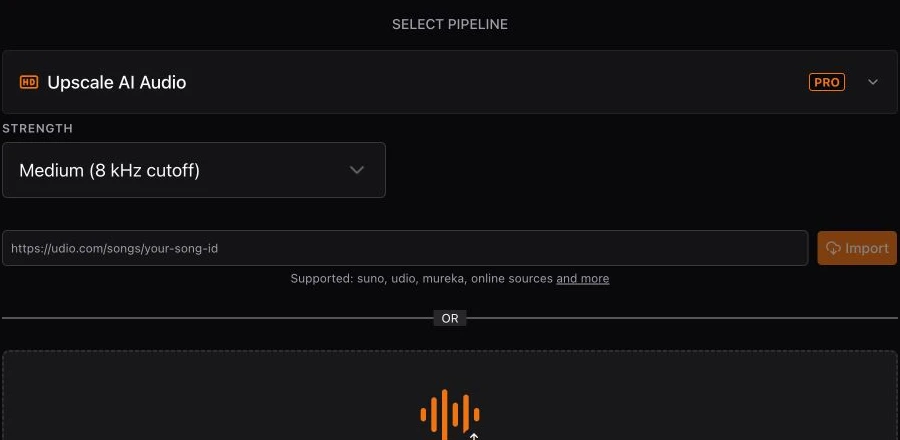
Upload files from your device
- Choose Import New.
- Drag files onto the Upload audio area, or click it to open the file picker.
- For several songs, select multiple files in the picker. Each file becomes a separate Studio track.
Import a public link
- Copy the public song, playlist, or creator-page URL from the platform.
- Paste it into Link to import and choose Import.
- A completed single-song import opens in Studio automatically.
Check the supported-imports list to see which platforms are supported.
Import more than one song
Select multiple local files, or paste a supported public playlist or creator page. Neural Analog creates one Studio track per song. A failed item does not remove the songs that completed.
After the collection is ready, use batch processing to run one operation or download many tracks together.
If an import fails
- For a local file, keep the tab open, check the visible size limit, and retry that file after the connection is stable.
- For a link, use the normal public page URL, not a private share link, edit page, or temporary media URL.
- For one failed playlist item, retry its direct song URL and leave completed tracks alone.