Neural Analog guide
Start hereBatch process several tracks
Apply one pipeline, model, stem preset, render, or download action to many tracks without opening them one by one. Paid plans allow up to 100 ready tracks per batch; the Free plan allows one.
Select multiple tracks
Batch processing happens in Studio.
- Go to the Studio.
- Select tracks with their checkboxes.
- Open the processing panel with the chevron icon.
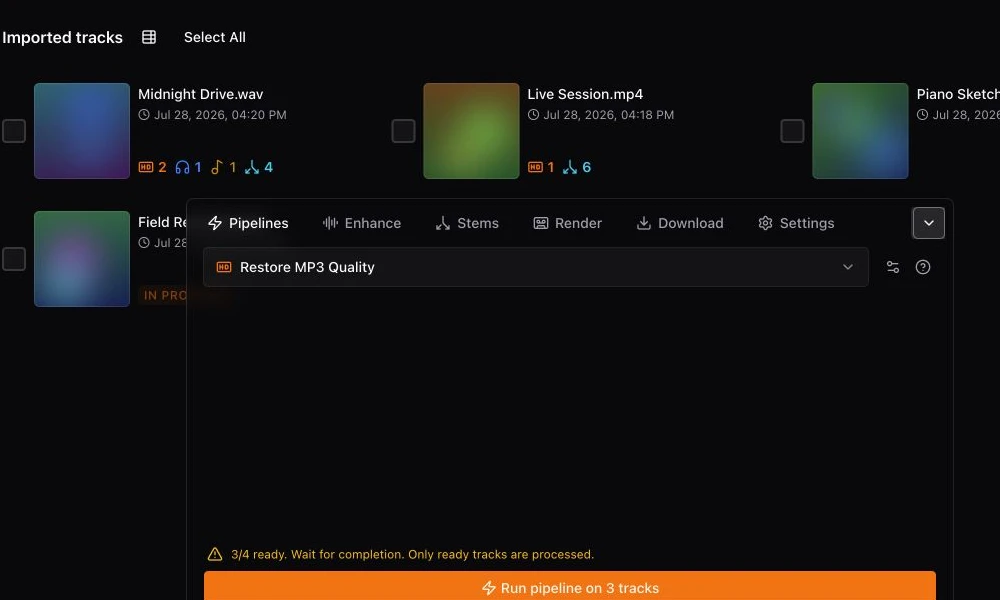
To build a batch from new audio, upload several files at once or import a playlist link.
Choose a batch operation to apply
The processing panel offers these batch operations:
- Pipelines: run the same built-in or saved pipeline.
- Enhance: apply one restoration, mastering, or transcription model.
- Split: use a separation preset.
- Render: create new files from the saved Studio mix and realtime FX for every ready track.
- Download: package existing originals and completed versions into an archive without rendering the mix again.
Check the estimate before processing
Importing a playlist can take a while. Wait until every track has finished importing before you process the whole batch.
Batch operations can use a lot of processing minutes quickly. Check the estimate before you confirm. Need more? See how processing minutes and plans work.
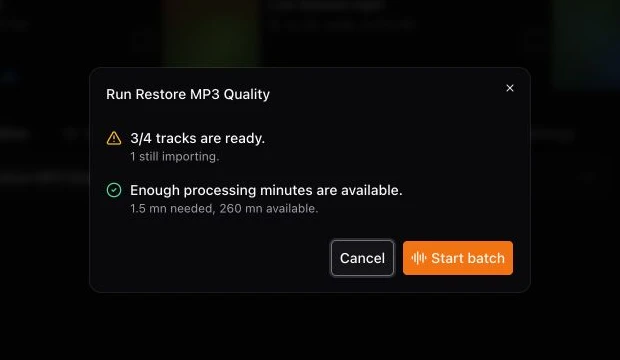
Monitor partial results live
Each track shows its own running, completed, or failed status. A failed item does not remove completed results: read that item's error, fix the cause, and retry only that track. Archive exports show live progress while they wait to start, render tracks (when needed), and build the ZIP.
While an archive runs, choose Send by email to receive its download link, or Cancel to stop the export. Returning to the same selection restores its progress. The download starts automatically when the archive is ready, and its button lets you retry the download. If some files are unavailable, the archive can still include the completed files; check the reported omissions.
See processing minutes for quota rules.
Batch Render to apply audio effects to every track
Use Batch Render when you want finished audio that includes the realtime processing configured for the batch. Open the batch FX controls above the track list to set Match EQ and its output gain, six-band EQ and its gain, Stereo, or Speed/Pitch across the selected tracks. Then open Render, choose Main, Combined Stems, or Individual stems, select the output format, and choose Render audio files and download ZIP.
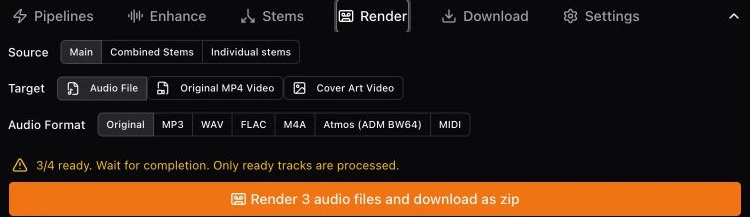
You can also use the Render tab to export to Atmos for several tracks at once.
Batch Download collects files that already exist
Use Batch Download to save many imported songs or completed results at once, such as a large collection imported from a supported AI music platform. Open Download, check the files to include (Original, Restored, Mastered, Transcribed MIDI, or Stems), choose a file format, and download the ZIP when it is ready.
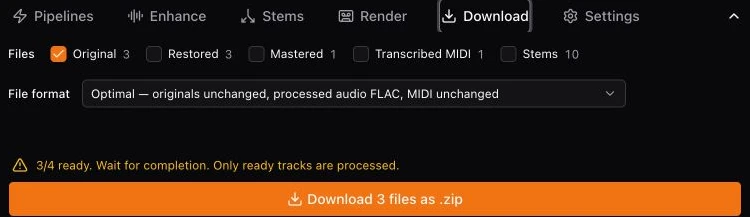
Download does not apply the current EQ, Match EQ, gain, stereo, or speed/pitch settings. It only collects the selected existing files and packages them.