Neural Analog guide
User guideGet started with Neural Analog: finish an AI song or repair audio
Neural Analog Studio imports songs from AI music platforms or your own files. Restore missing frequencies and compression damage, split out problem stems, master the cleaner version, or turn audio into MIDI. The source and every result stay together in one Studio track.
This walkthrough shows how an imported AI song moves through restoration and review in Studio.

The basic pipeline
- Import. Upload one or more files, or paste a supported public song, playlist, or creator link. Importing does not start a model or use processing minutes.
- Continue in Studio. A completed single import opens automatically. The top row is the full song; extracted or imported stems appear below it.
- Choose the task. Use Pipelines for a complete pipeline, Enhance for one model, or Split for separation.
- Optionally select a range. Drag on the waveform to process only that section. Hold Ctrl/Command while dragging to mark a prompt region for SAM Audio or Stable Audio 3.
- Review and start. The imported file is already the default input. Change Input only to process another version, a stem, or a current mix. Start the job, then follow its live status.
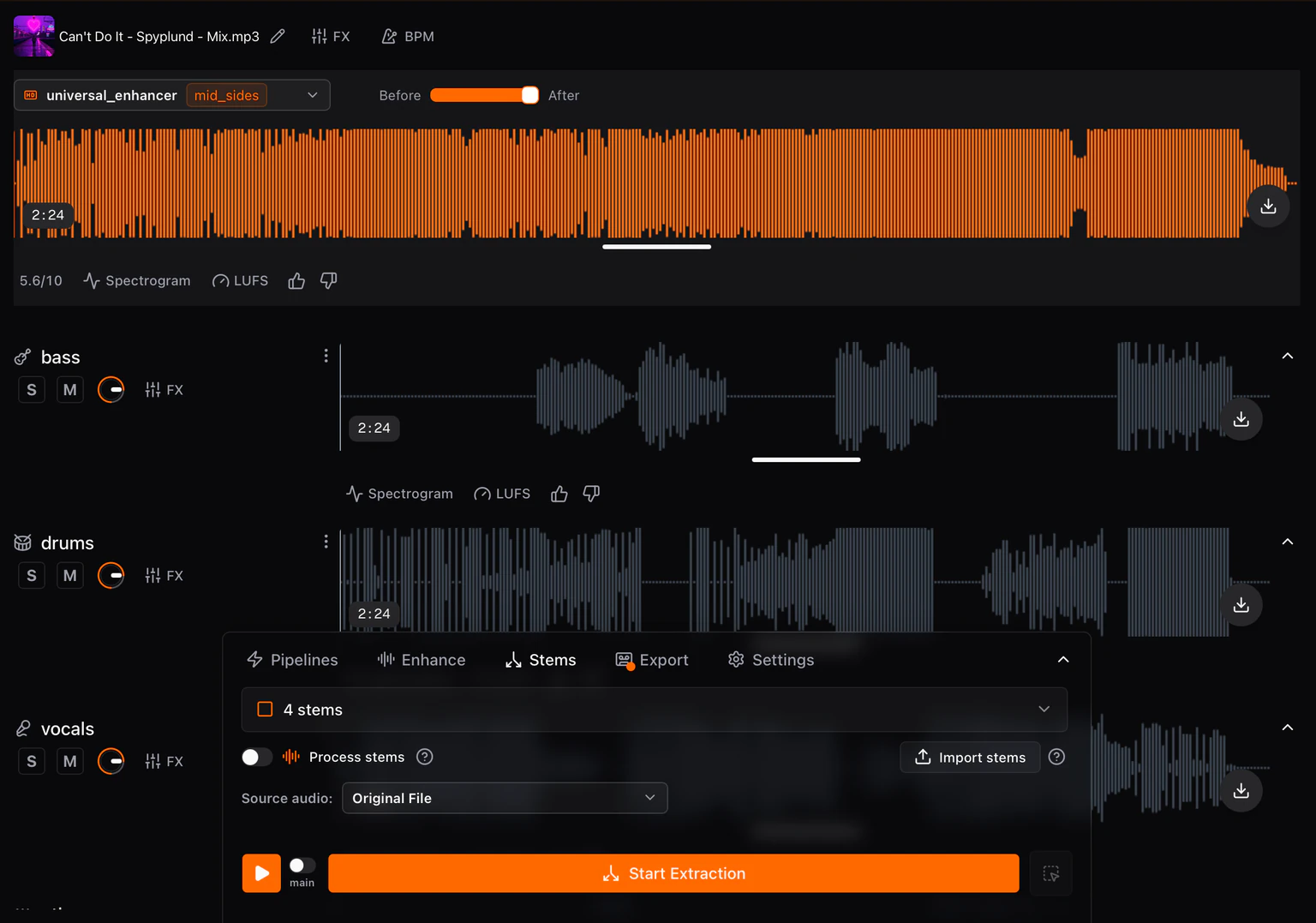
Choose a task
| Need | Start with | Result |
|---|---|---|
| Repair a compressed MP3 or web import | Restore MP3 Quality | Restored audio |
| Improve damaged detail in an AI song | Upscale AI-generated music | 48 kHz restored audio |
| Remove noise or hiss | Remove noise and hissing | Cleaner audio |
| Separate vocals and instruments | 4 stems | Four stem tracks |
| Prepare a song for release | Restore and master | Restored and mastered audio |
| Turn a song into editable notes | Transcribe Stems to MIDI | MIDI stem versions |
| Create a new interpretation | Neural Remix | Regenerated audio |
Review the new version
Open the track's version menu. Processed versions are color coded: Restored, Mastered, and MIDI.
Select a processed version and use its Before / After slider to compare it with the source. Then continue to Export audio.